Get the most out of
Feedii.
A complete walkthrough of every feature — from your first meal scan to mastering AI Coach. Built for iPhone, Apple Watch, and HealthKit.
01
Getting Started
First-launch setup takes under two minutes. Feedii personalizes your goals based on a short profile and your existing Apple Health data — no manual entry required.
- 1Download Feedii from the App Store and open the app.
- 2Sign in with Apple, Google, or email — your choice.
- 3Complete the short profile (age, goal, activity level).
- 4Grant Apple Health permission so Feedii can read your activity, weight, and sleep.
- 5Land on the home dashboard — you're ready to log your first meal.
02
Your Daily Dashboard
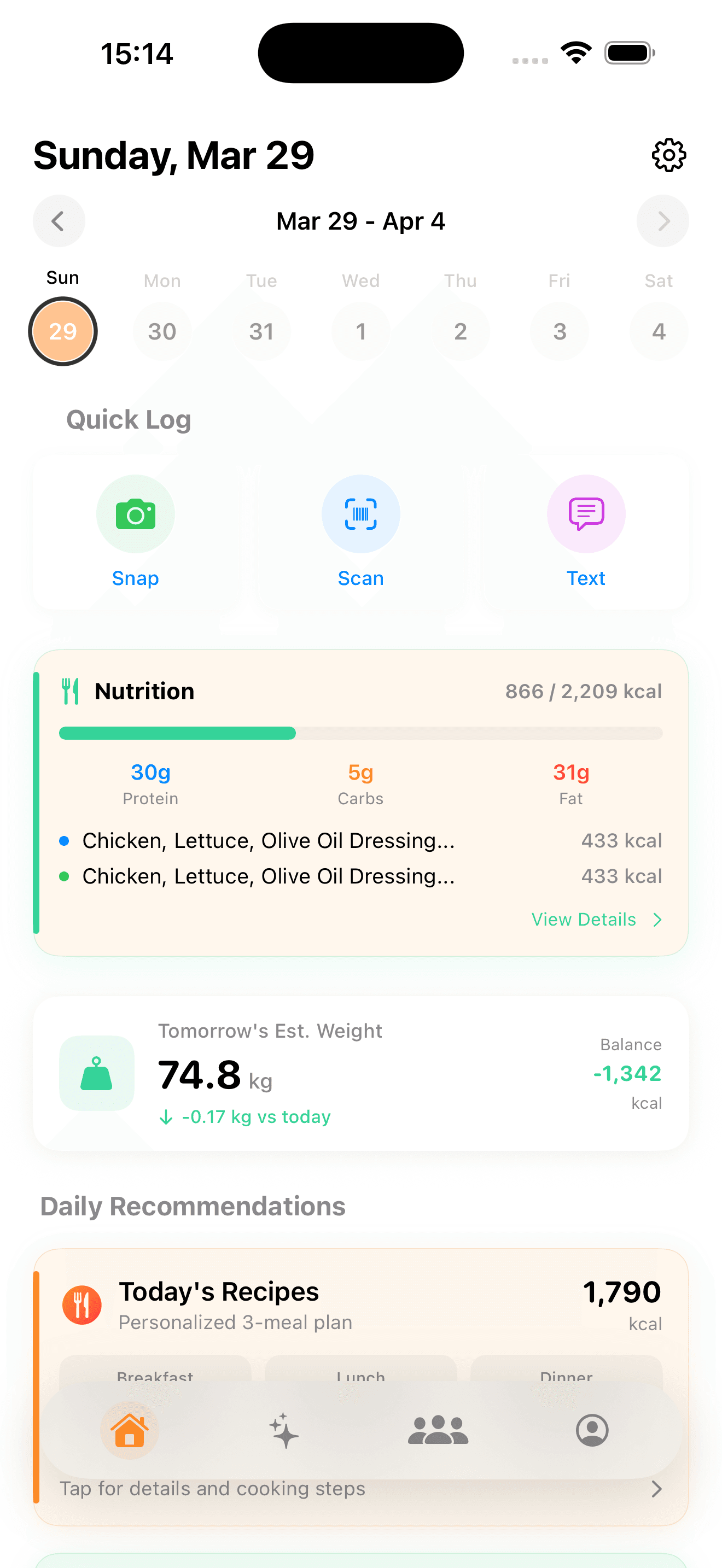
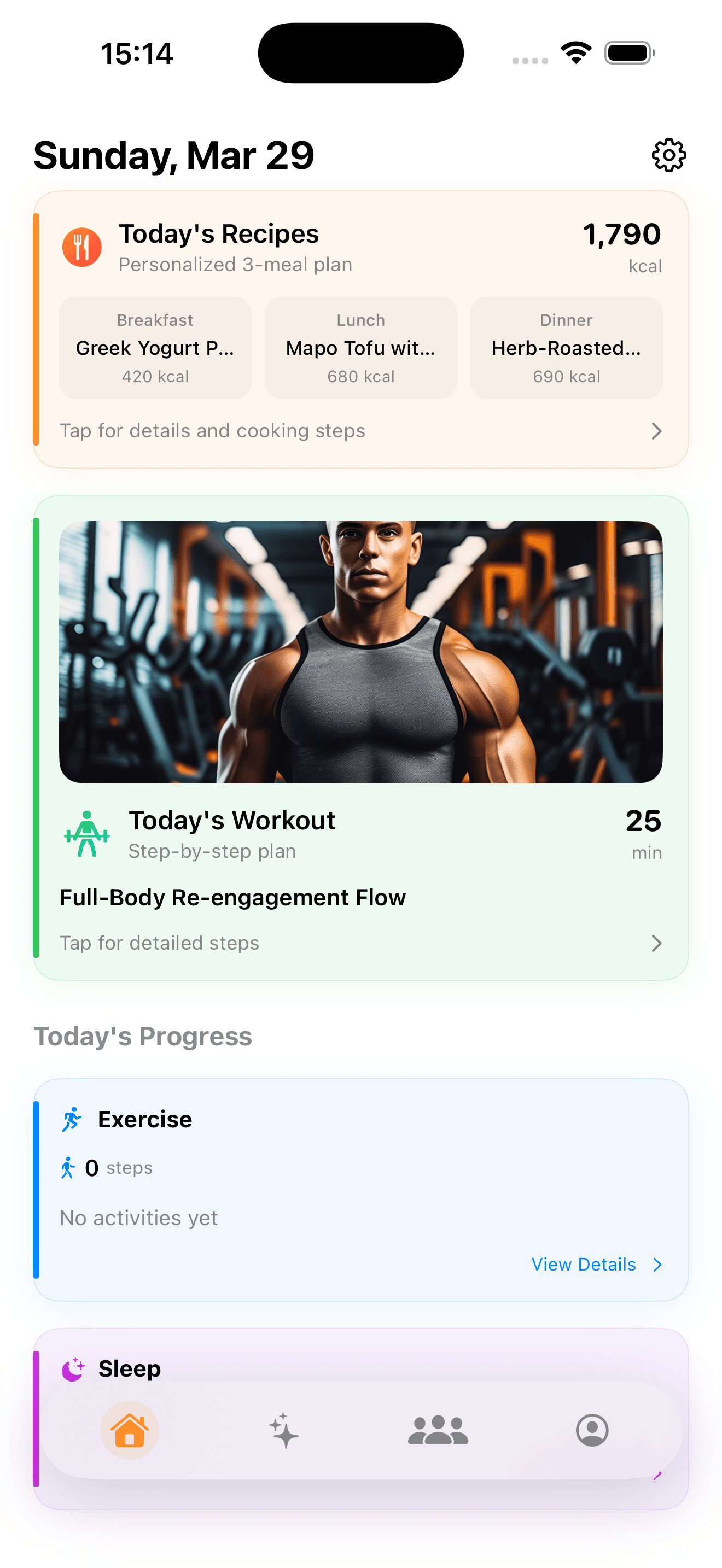
The dashboard is mission control. Daily macros, calories burned, sleep score, weight trend, and AI insights — all on one scrollable screen.
- 1Tap the Home tab to see today's snapshot.
- 2Swipe the date strip at the top to review past days.
- 3Tap any metric card to drill into the detail view.
- 4Pull down to refresh HealthKit data manually.
- 5Long-press a card to pin it to the top of your dashboard.
03
AI Food Recognition
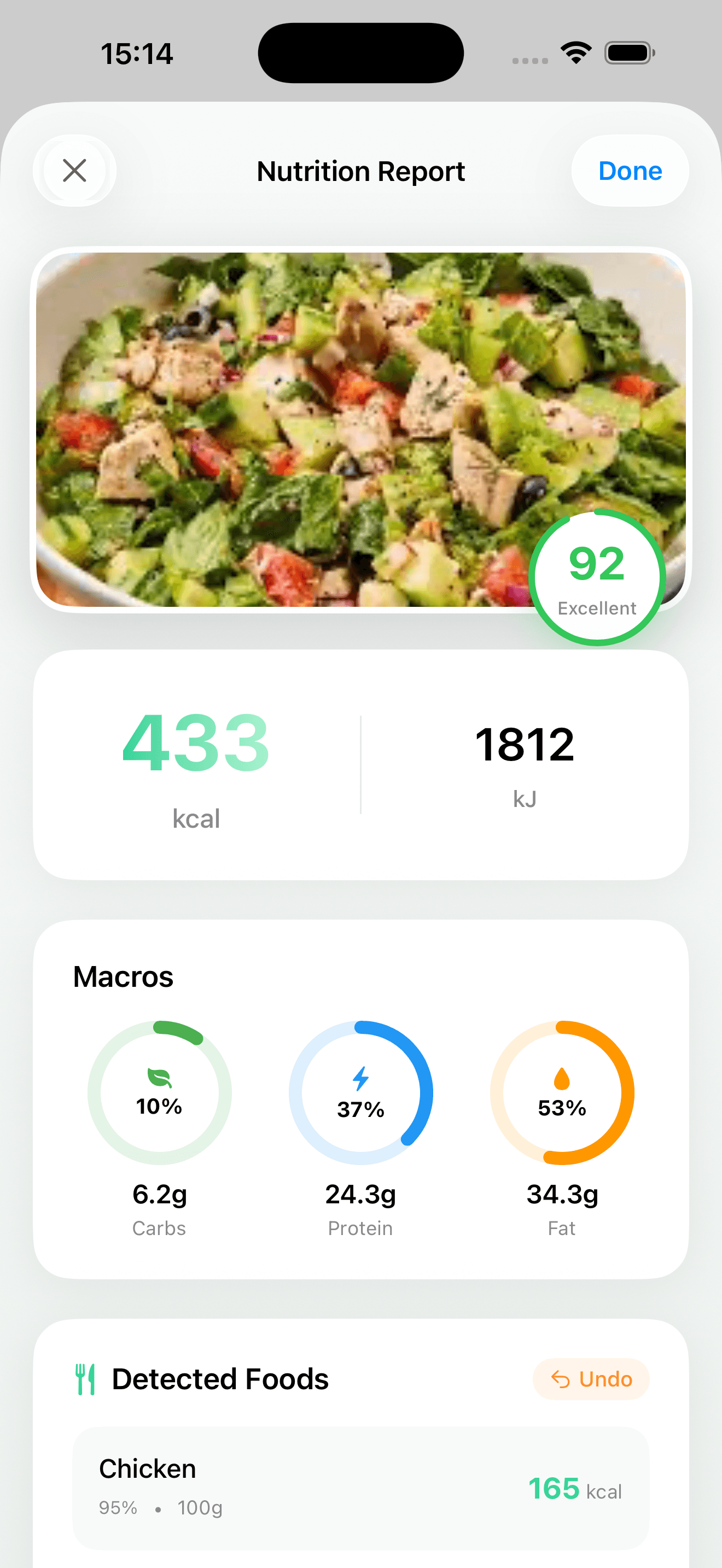
Snap a photo and Feedii's multi-model AI vision pipeline returns ingredients, portions, and full macros in under three seconds.
- 1Tap the camera button in the bottom navigation.
- 2Frame the entire plate in the viewfinder — natural light works best.
- 3Tap the shutter; AI analysis runs in 2–3 seconds.
- 4Review the detected items — tap any item to adjust portion size or swap it.
- 5Hit Save to log the meal to your daily total.
04
Nutrition Logging
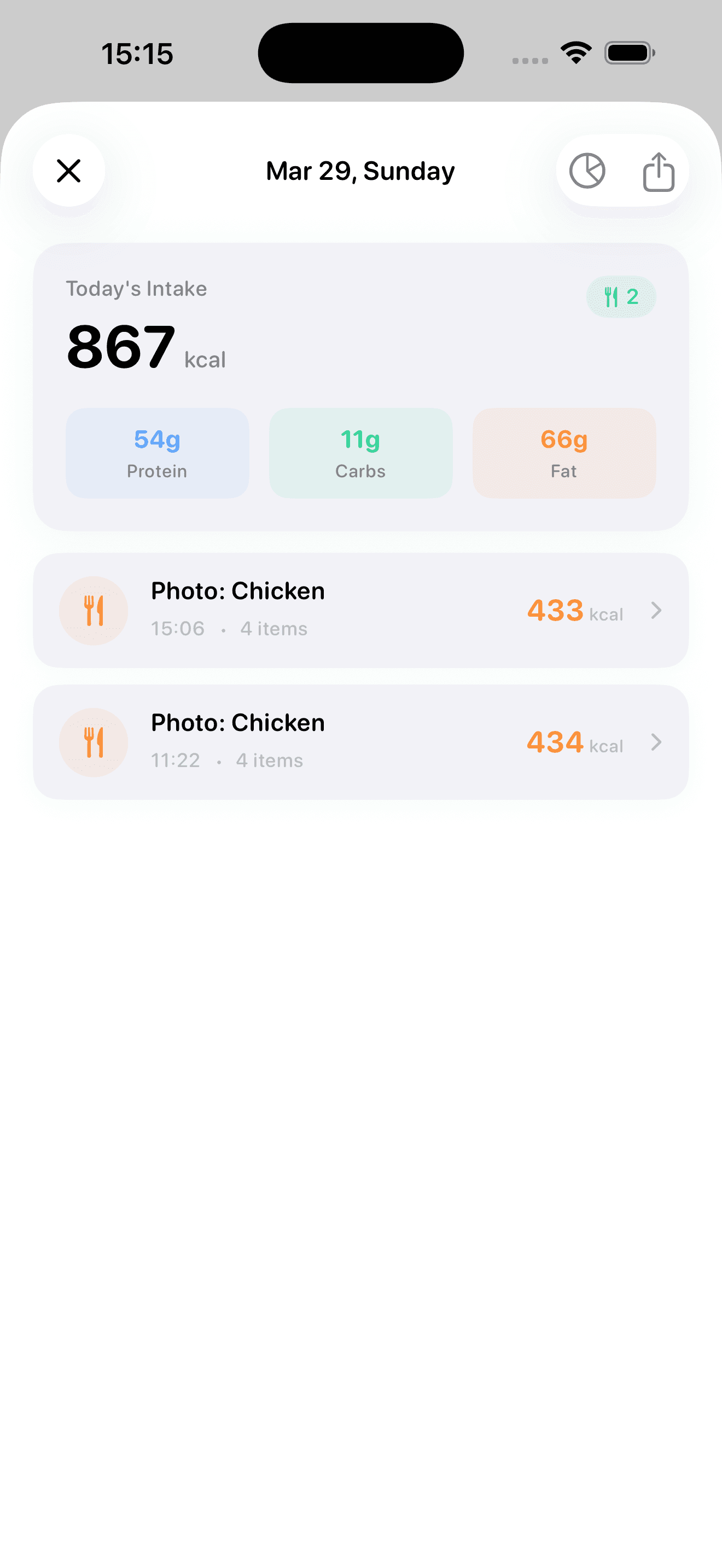
Beyond photos, Feedii supports manual entry, barcode scanning, and a searchable food database so you can log accurately even when AI vision isn't an option.
- 1Tap the + button on the Nutrition tab to log manually.
- 2Search by food name, scan a barcode, or pick from your favorites.
- 3Adjust the serving size and meal type (breakfast, lunch, dinner, snack).
- 4Watch your daily macro split update live, color-coded against your targets.
- 5Tap History to review or edit any past entry.
05
AI Coach
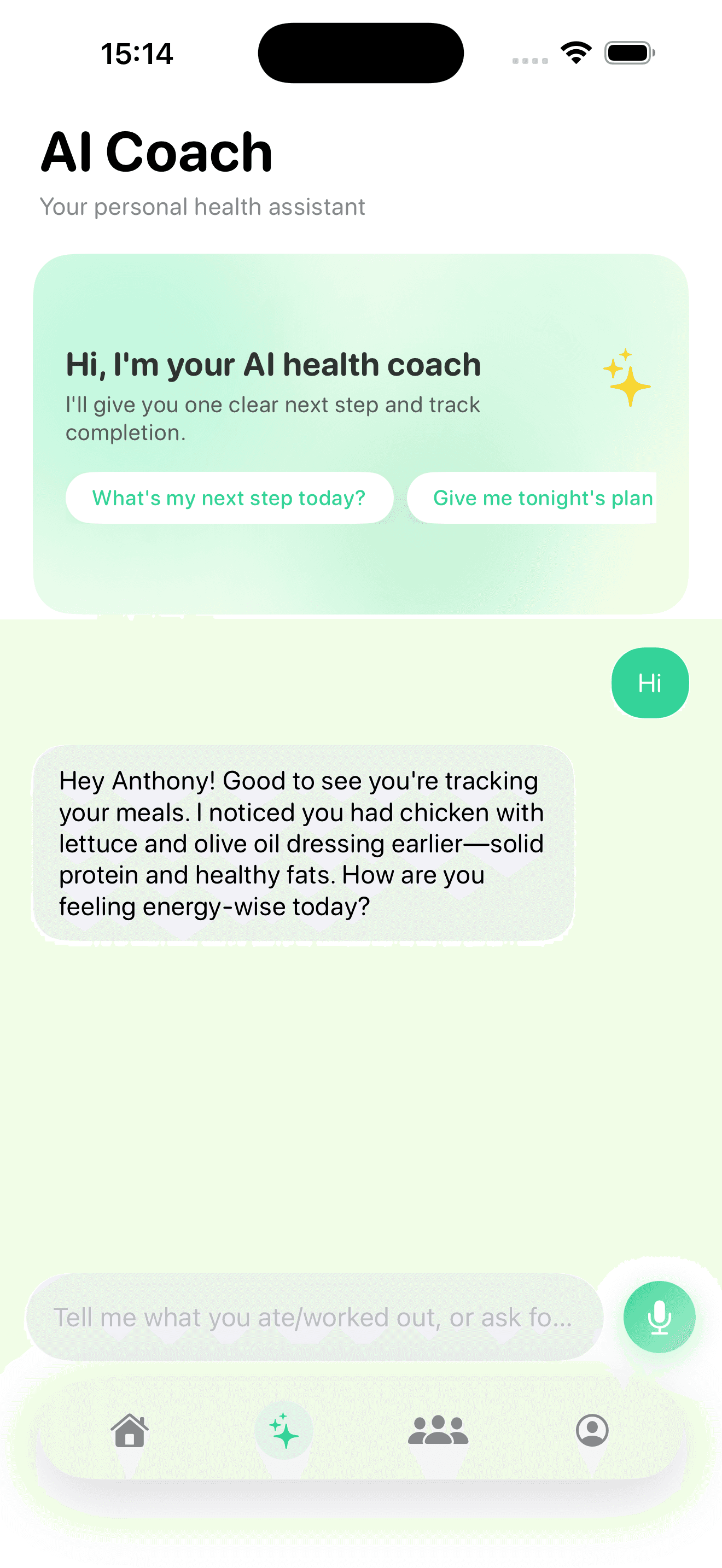
Feedii Coach is context-aware. Ask anything from "why was I tired today?" to "plan my dinners this week" — answers reference your actual logs.
- 1Open the Coach tab to start a chat.
- 2Type or speak your question — natural language works.
- 3Coach pulls from your nutrition, sleep, and activity history to answer.
- 4Tap suggested follow-ups to dig deeper.
- 5Bookmark important advice by tapping the bookmark icon on any reply.
06
Recipes & Meal Ideas
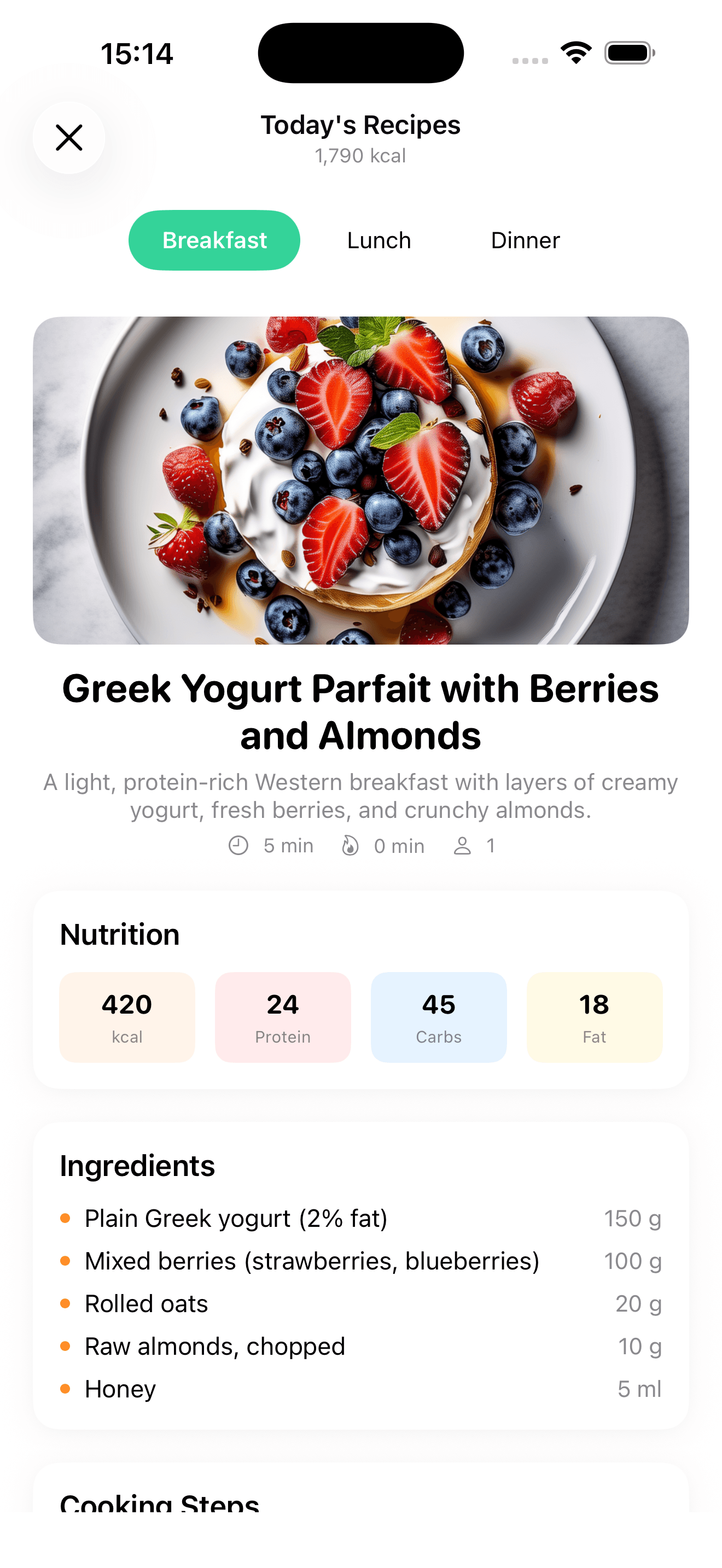
Browse curated recipes or ask AI to generate meal ideas tailored to your goal, remaining macros, and preferred cuisine.
- 1Tap Recipes to browse the curated library.
- 2Filter by goal (high protein, low carb, etc.) or cuisine.
- 3Tap Generate to ask AI for ideas matching your remaining daily macros.
- 4Open any recipe for ingredients, steps, and full nutrition.
- 5Tap Add to Plan to schedule it on a future day.
07
Community
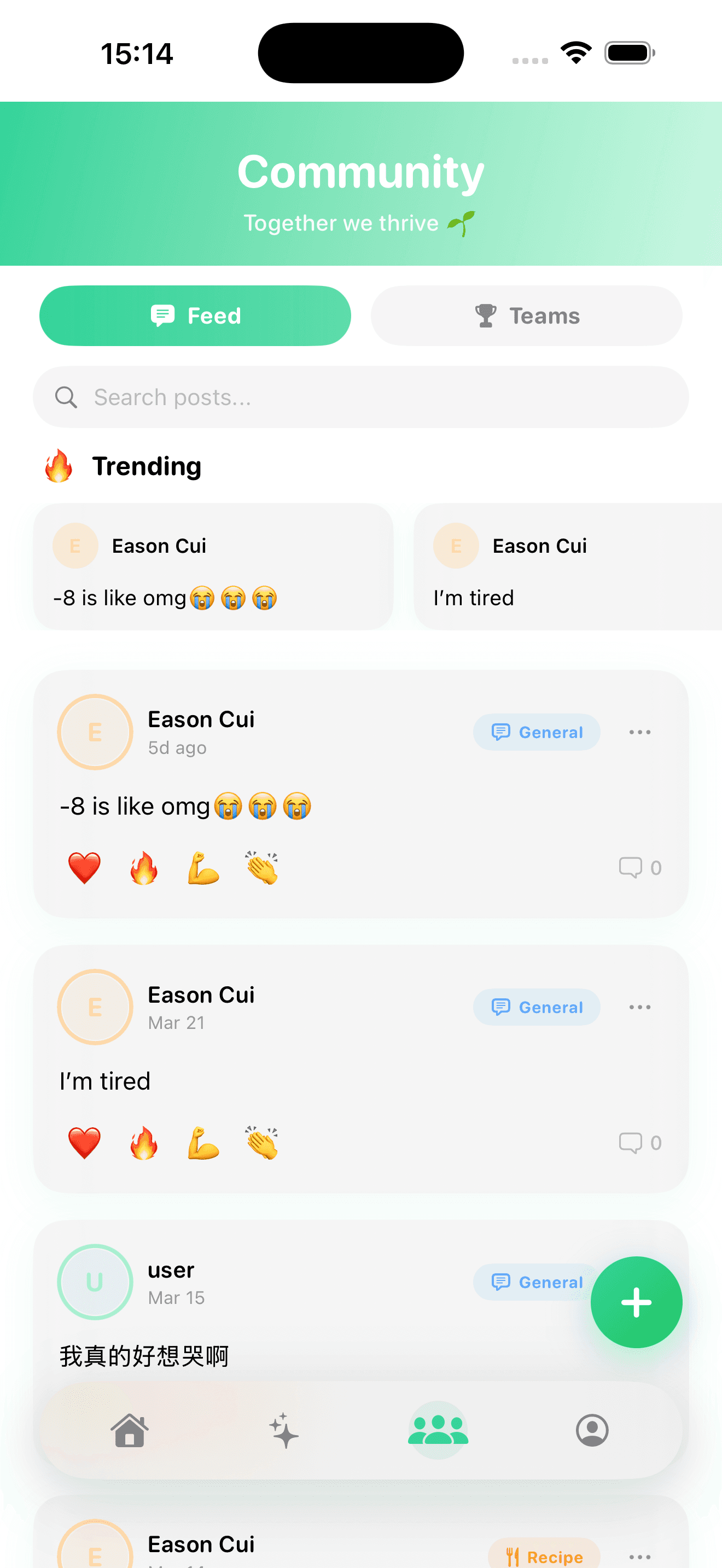
Tier-based leagues, weekly challenges, and a feed of shared progress. Compete with friends or join a public league anonymously.
- 1Open the Community tab to see your league standing.
- 2Browse the feed — like, comment, or share posts.
- 3Tap the + button to share a meal, workout, or milestone.
- 4Join a weekly challenge from the Challenges section.
- 5Check leaderboards to see how you rank against your league.
08
Settings & Subscription
Manage your profile, HealthKit permissions, notifications, subscription, and account from one place.
- 1Open Profile from the bottom nav, then tap the gear icon.
- 2Update your goals, weight, or activity level under Profile.
- 3Manage Apple HealthKit categories under Connected Apps.
- 4Configure daily reminders and AI alerts under Notifications.
- 5View, upgrade, or cancel your subscription under Manage Plan.
Ready to start?
Download Feedii and follow along.
Every feature in this guide is included in the free trial. No credit card required.